> ## Documentation Index
> Fetch the complete documentation index at: https://docs-staging-feat-eup-870.mintlify.site/llms.txt
> Use this file to discover all available pages before exploring further.

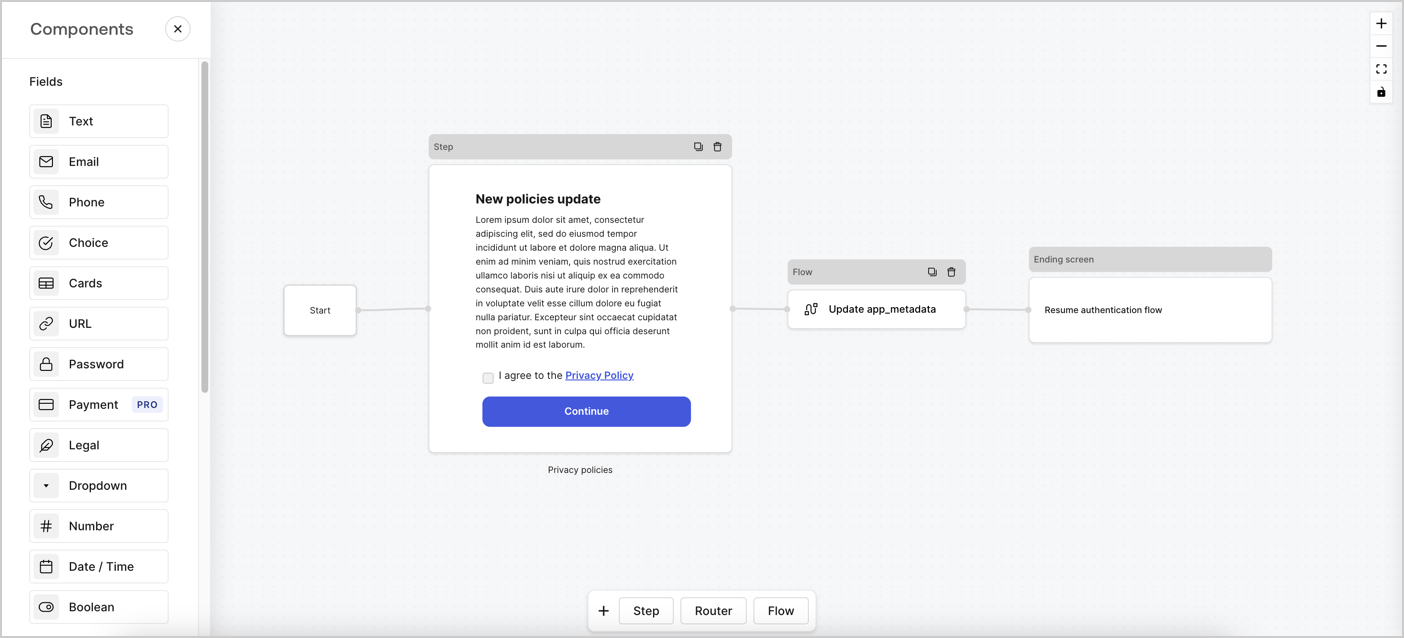
> Learn how to configure an update policy form using Forms for Actions for users to review and accept new terms of service or consent updates.

# Use Cases: Configure an update policy form using Forms

<Card title="Before you start">
  1. Create a [Machine-to-Machine Application](/docs/get-started/auth0-overview/create-applications/machine-to-machine-apps) with the following scopes enabled:

  * `read:users`
  * `update:users`
  * `create:users`
  * `read:users_app_metadata`
  * `update:users_app_metadata`
  * `create:users_app_metadata`

  2. Add a [Vault connection](/docs/customize/forms/vault) using the M2M application credentials.
</Card>

Forms for Actions allows you to create custom privacy policies flows and store the consent under the `app_metadata` object.
<Frame>
  <img src="https://mintcdn.com/docs-staging-feat-eup-870/Nv6Lg_m4hRzLkvhe/docs/images/cdy7uua7fh8z/6i68dMvHDTijfRmSgN1x8Q/ad900e7d4c0fb34645921435472b8684/privavy-policy-form.png?fit=max&auto=format&n=Nv6Lg_m4hRzLkvhe&q=85&s=40547960d4c20d8de5cc13a70c4e46e5" alt="Dashboard > Actions > Forms > Privacy policy use case" data-og-width="1404" width="1404" data-og-height="638" height="638" data-path="docs/images/cdy7uua7fh8z/6i68dMvHDTijfRmSgN1x8Q/ad900e7d4c0fb34645921435472b8684/privavy-policy-form.png" data-optimize="true" data-opv="3" srcset="https://mintcdn.com/docs-staging-feat-eup-870/Nv6Lg_m4hRzLkvhe/docs/images/cdy7uua7fh8z/6i68dMvHDTijfRmSgN1x8Q/ad900e7d4c0fb34645921435472b8684/privavy-policy-form.png?w=280&fit=max&auto=format&n=Nv6Lg_m4hRzLkvhe&q=85&s=32f7064a48672dc3dbf7409d41cb5d13 280w, https://mintcdn.com/docs-staging-feat-eup-870/Nv6Lg_m4hRzLkvhe/docs/images/cdy7uua7fh8z/6i68dMvHDTijfRmSgN1x8Q/ad900e7d4c0fb34645921435472b8684/privavy-policy-form.png?w=560&fit=max&auto=format&n=Nv6Lg_m4hRzLkvhe&q=85&s=75d23ce98721575e7b29f3246c4ff290 560w, https://mintcdn.com/docs-staging-feat-eup-870/Nv6Lg_m4hRzLkvhe/docs/images/cdy7uua7fh8z/6i68dMvHDTijfRmSgN1x8Q/ad900e7d4c0fb34645921435472b8684/privavy-policy-form.png?w=840&fit=max&auto=format&n=Nv6Lg_m4hRzLkvhe&q=85&s=c07e1e9b68a13e0c1745646d3547a438 840w, https://mintcdn.com/docs-staging-feat-eup-870/Nv6Lg_m4hRzLkvhe/docs/images/cdy7uua7fh8z/6i68dMvHDTijfRmSgN1x8Q/ad900e7d4c0fb34645921435472b8684/privavy-policy-form.png?w=1100&fit=max&auto=format&n=Nv6Lg_m4hRzLkvhe&q=85&s=379f21acd6d0a4cdb487e674817d9c8d 1100w, https://mintcdn.com/docs-staging-feat-eup-870/Nv6Lg_m4hRzLkvhe/docs/images/cdy7uua7fh8z/6i68dMvHDTijfRmSgN1x8Q/ad900e7d4c0fb34645921435472b8684/privavy-policy-form.png?w=1650&fit=max&auto=format&n=Nv6Lg_m4hRzLkvhe&q=85&s=489283d69a157567549c0acc84ff9b9a 1650w, https://mintcdn.com/docs-staging-feat-eup-870/Nv6Lg_m4hRzLkvhe/docs/images/cdy7uua7fh8z/6i68dMvHDTijfRmSgN1x8Q/ad900e7d4c0fb34645921435472b8684/privavy-policy-form.png?w=2500&fit=max&auto=format&n=Nv6Lg_m4hRzLkvhe&q=85&s=542b0d7b2ec5f6692996ebfa74e97349 2500w" />
</Frame>

The sections below outline how you can create an Update Policy form using nodes and flows, along with steps for adding your form to a [Post Login](/docs/customize/actions/explore-triggers/signup-and-login-triggers/login-trigger) Action.

## Create a form from scratch

Follow these steps to create a form to gather information:

1. Open the Form editor by selecting **Auth0 Dashboard > Actions > Forms.**
2. Select **Create Form** > **Start from scratch**.

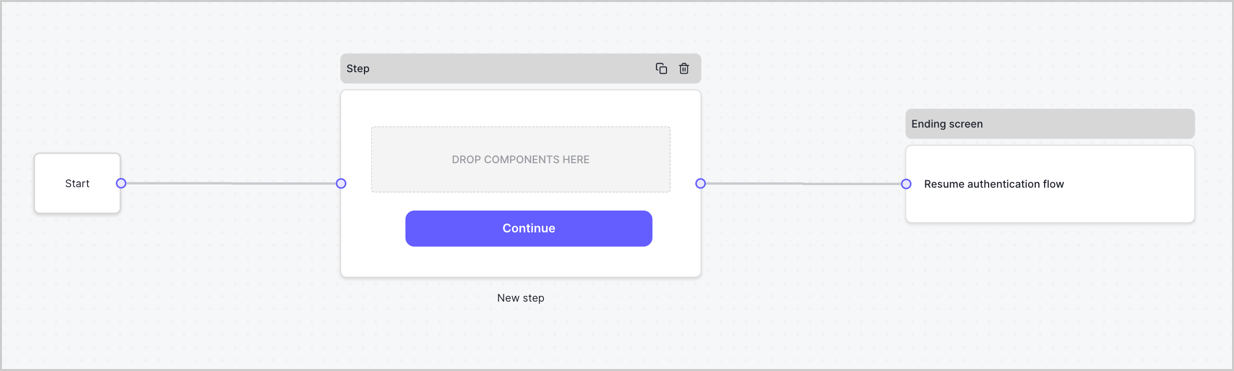
By default, a new form contains a Start node, a Step node, and an Ending screen node.
<Frame>
  <img src="https://mintcdn.com/docs-staging-feat-eup-870/qxAT3wwabsR53ml5/docs/images/cdy7uua7fh8z/2TZ9jSjgEcARFpULI6hz4R/a4319a1bd482f2ee5cc23100fdb2f42c/New-form-Forms-for-action-use-case.png?fit=max&auto=format&n=qxAT3wwabsR53ml5&q=85&s=5b53a0276730e20184565829ac23662a" alt="Dashboard > Forms > Use Cases > Form" data-og-width="1234" width="1234" data-og-height="371" height="371" data-path="docs/images/cdy7uua7fh8z/2TZ9jSjgEcARFpULI6hz4R/a4319a1bd482f2ee5cc23100fdb2f42c/New-form-Forms-for-action-use-case.png" data-optimize="true" data-opv="3" srcset="https://mintcdn.com/docs-staging-feat-eup-870/qxAT3wwabsR53ml5/docs/images/cdy7uua7fh8z/2TZ9jSjgEcARFpULI6hz4R/a4319a1bd482f2ee5cc23100fdb2f42c/New-form-Forms-for-action-use-case.png?w=280&fit=max&auto=format&n=qxAT3wwabsR53ml5&q=85&s=c69a2c01faed481b918c7f7f513e3792 280w, https://mintcdn.com/docs-staging-feat-eup-870/qxAT3wwabsR53ml5/docs/images/cdy7uua7fh8z/2TZ9jSjgEcARFpULI6hz4R/a4319a1bd482f2ee5cc23100fdb2f42c/New-form-Forms-for-action-use-case.png?w=560&fit=max&auto=format&n=qxAT3wwabsR53ml5&q=85&s=191fb82470f2c45f2bdda6cdf17ba5c8 560w, https://mintcdn.com/docs-staging-feat-eup-870/qxAT3wwabsR53ml5/docs/images/cdy7uua7fh8z/2TZ9jSjgEcARFpULI6hz4R/a4319a1bd482f2ee5cc23100fdb2f42c/New-form-Forms-for-action-use-case.png?w=840&fit=max&auto=format&n=qxAT3wwabsR53ml5&q=85&s=6c1d3f6dcb1bb09fdf21e9cc5773fdd9 840w, https://mintcdn.com/docs-staging-feat-eup-870/qxAT3wwabsR53ml5/docs/images/cdy7uua7fh8z/2TZ9jSjgEcARFpULI6hz4R/a4319a1bd482f2ee5cc23100fdb2f42c/New-form-Forms-for-action-use-case.png?w=1100&fit=max&auto=format&n=qxAT3wwabsR53ml5&q=85&s=d06eba69faf5842eca2d47f6bc418e79 1100w, https://mintcdn.com/docs-staging-feat-eup-870/qxAT3wwabsR53ml5/docs/images/cdy7uua7fh8z/2TZ9jSjgEcARFpULI6hz4R/a4319a1bd482f2ee5cc23100fdb2f42c/New-form-Forms-for-action-use-case.png?w=1650&fit=max&auto=format&n=qxAT3wwabsR53ml5&q=85&s=20ba330b17924b88349dbb048f0fe7bd 1650w, https://mintcdn.com/docs-staging-feat-eup-870/qxAT3wwabsR53ml5/docs/images/cdy7uua7fh8z/2TZ9jSjgEcARFpULI6hz4R/a4319a1bd482f2ee5cc23100fdb2f42c/New-form-Forms-for-action-use-case.png?w=2500&fit=max&auto=format&n=qxAT3wwabsR53ml5&q=85&s=2aadb2db4b1615731ab597c64bfc3f45 2500w" />
</Frame>

### Configure the Step node

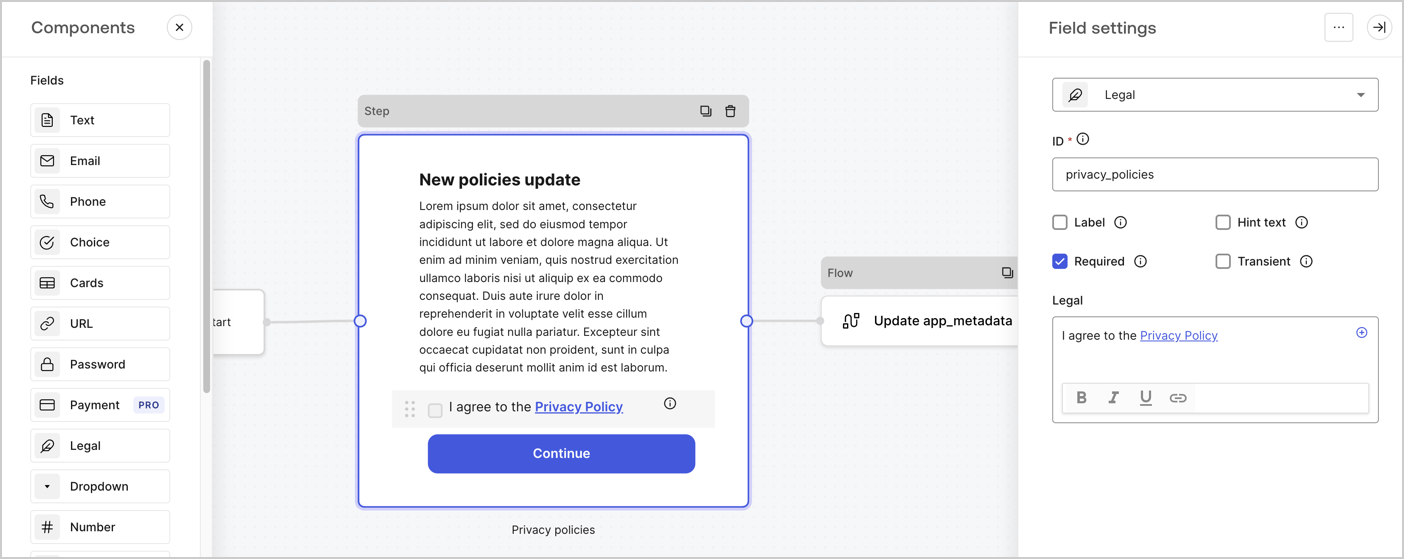
The Step node is the graphical interface visible to users. Add [Fields](/docs/customize/forms/nodes-and-components) to the Step node to collect the new agreement acceptance value by following these steps:

1. Drag a **Rich text** field from the **Components menu** into the **Step** node.

   * **Rich text**: Enter a description of your privacy policies updates.
   * Select **Save**.
2. Drag a **Legal** field into the **Step** node.

   * **ID**: Enter `privacy_policies`.
   * **Required**: Enable the checkbox.
   * **Legal**: Enter `I agree to the Privacy Policy`.
   * Select **Save**.
3. Select **Publish** to save.
<Frame>
  <img src="https://mintcdn.com/docs-staging-feat-eup-870/773ywZ6JA583G_R5/docs/images/cdy7uua7fh8z/59zFFjQjAnjogkc2QGIqqJ/0ad66b1b636544122aa4e65968b76c2c/privacy-policy-step-node.png?fit=max&auto=format&n=773ywZ6JA583G_R5&q=85&s=9c24fcce6a1d886e89eff5f28f58782d" alt="Dashboard > Actions > Forms > Use case privacy policy step node" data-og-width="1404" width="1404" data-og-height="559" height="559" data-path="docs/images/cdy7uua7fh8z/59zFFjQjAnjogkc2QGIqqJ/0ad66b1b636544122aa4e65968b76c2c/privacy-policy-step-node.png" data-optimize="true" data-opv="3" srcset="https://mintcdn.com/docs-staging-feat-eup-870/773ywZ6JA583G_R5/docs/images/cdy7uua7fh8z/59zFFjQjAnjogkc2QGIqqJ/0ad66b1b636544122aa4e65968b76c2c/privacy-policy-step-node.png?w=280&fit=max&auto=format&n=773ywZ6JA583G_R5&q=85&s=d1e18488e8d4fea43908c99ba408674c 280w, https://mintcdn.com/docs-staging-feat-eup-870/773ywZ6JA583G_R5/docs/images/cdy7uua7fh8z/59zFFjQjAnjogkc2QGIqqJ/0ad66b1b636544122aa4e65968b76c2c/privacy-policy-step-node.png?w=560&fit=max&auto=format&n=773ywZ6JA583G_R5&q=85&s=633b9d7678eaf89da54cd9bc895a719f 560w, https://mintcdn.com/docs-staging-feat-eup-870/773ywZ6JA583G_R5/docs/images/cdy7uua7fh8z/59zFFjQjAnjogkc2QGIqqJ/0ad66b1b636544122aa4e65968b76c2c/privacy-policy-step-node.png?w=840&fit=max&auto=format&n=773ywZ6JA583G_R5&q=85&s=6243d28a90f31b7e327f03a625ea8d05 840w, https://mintcdn.com/docs-staging-feat-eup-870/773ywZ6JA583G_R5/docs/images/cdy7uua7fh8z/59zFFjQjAnjogkc2QGIqqJ/0ad66b1b636544122aa4e65968b76c2c/privacy-policy-step-node.png?w=1100&fit=max&auto=format&n=773ywZ6JA583G_R5&q=85&s=0aa2de4cd46bc1ea37d9b7401603b5c5 1100w, https://mintcdn.com/docs-staging-feat-eup-870/773ywZ6JA583G_R5/docs/images/cdy7uua7fh8z/59zFFjQjAnjogkc2QGIqqJ/0ad66b1b636544122aa4e65968b76c2c/privacy-policy-step-node.png?w=1650&fit=max&auto=format&n=773ywZ6JA583G_R5&q=85&s=fbe56d138758bfd5e805deacf655e01b 1650w, https://mintcdn.com/docs-staging-feat-eup-870/773ywZ6JA583G_R5/docs/images/cdy7uua7fh8z/59zFFjQjAnjogkc2QGIqqJ/0ad66b1b636544122aa4e65968b76c2c/privacy-policy-step-node.png?w=2500&fit=max&auto=format&n=773ywZ6JA583G_R5&q=85&s=c3aec8b39a3fbfb0711e49e562b9ee45 2500w" />
</Frame>

### Configure the Flow node

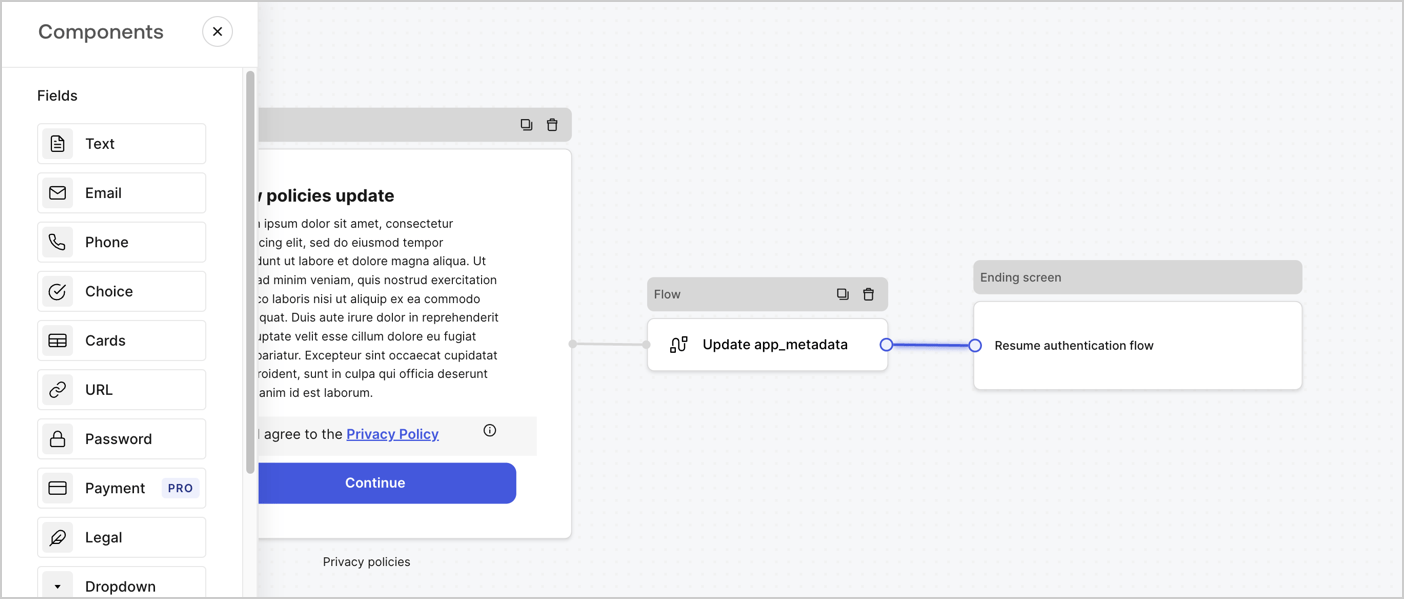
Add a **Flow** node after the **Step** node to update the `app_metadata` and resume the authentication flow by following these steps:

1. Select **Flow** from the bottom of the Form editor.
2. Remove the existing link between the **Step** and **Ending Screen** nodes.
3. Select the new **Flow** > **Click to add a flow** > **Create a new flow.**

   * Enter `Update app_metadata` in the **Name** field.
   * Select **Create**.
   * Select **Save**.
4. Link the **Flow** node to the **Step** and **Ending Screen** nodes as pictured below.
5. Select **Publish** to save.
<Frame>
  <img src="https://mintcdn.com/docs-staging-feat-eup-870/Nv6Lg_m4hRzLkvhe/docs/images/cdy7uua7fh8z/6YIkzm7SrpM9LW76AXuRzh/353c518fe82bbaa440836da1d83596d6/link-policies.png?fit=max&auto=format&n=Nv6Lg_m4hRzLkvhe&q=85&s=755a44335de01259967cfc5b8bf483d7" alt="Dashboard > Actions > Forms > Form" data-og-width="1404" width="1404" data-og-height="599" height="599" data-path="docs/images/cdy7uua7fh8z/6YIkzm7SrpM9LW76AXuRzh/353c518fe82bbaa440836da1d83596d6/link-policies.png" data-optimize="true" data-opv="3" srcset="https://mintcdn.com/docs-staging-feat-eup-870/Nv6Lg_m4hRzLkvhe/docs/images/cdy7uua7fh8z/6YIkzm7SrpM9LW76AXuRzh/353c518fe82bbaa440836da1d83596d6/link-policies.png?w=280&fit=max&auto=format&n=Nv6Lg_m4hRzLkvhe&q=85&s=a137e4ec2b2fffe4ff82b27a5b3145b6 280w, https://mintcdn.com/docs-staging-feat-eup-870/Nv6Lg_m4hRzLkvhe/docs/images/cdy7uua7fh8z/6YIkzm7SrpM9LW76AXuRzh/353c518fe82bbaa440836da1d83596d6/link-policies.png?w=560&fit=max&auto=format&n=Nv6Lg_m4hRzLkvhe&q=85&s=da4bd0300e77481339dd6b6d37592e5b 560w, https://mintcdn.com/docs-staging-feat-eup-870/Nv6Lg_m4hRzLkvhe/docs/images/cdy7uua7fh8z/6YIkzm7SrpM9LW76AXuRzh/353c518fe82bbaa440836da1d83596d6/link-policies.png?w=840&fit=max&auto=format&n=Nv6Lg_m4hRzLkvhe&q=85&s=51b54480cdcf7c8b8d35643a5db5f649 840w, https://mintcdn.com/docs-staging-feat-eup-870/Nv6Lg_m4hRzLkvhe/docs/images/cdy7uua7fh8z/6YIkzm7SrpM9LW76AXuRzh/353c518fe82bbaa440836da1d83596d6/link-policies.png?w=1100&fit=max&auto=format&n=Nv6Lg_m4hRzLkvhe&q=85&s=d1327000cc63dc14c2db342ef4809612 1100w, https://mintcdn.com/docs-staging-feat-eup-870/Nv6Lg_m4hRzLkvhe/docs/images/cdy7uua7fh8z/6YIkzm7SrpM9LW76AXuRzh/353c518fe82bbaa440836da1d83596d6/link-policies.png?w=1650&fit=max&auto=format&n=Nv6Lg_m4hRzLkvhe&q=85&s=b037f0d46c15688154521d231b584f8b 1650w, https://mintcdn.com/docs-staging-feat-eup-870/Nv6Lg_m4hRzLkvhe/docs/images/cdy7uua7fh8z/6YIkzm7SrpM9LW76AXuRzh/353c518fe82bbaa440836da1d83596d6/link-policies.png?w=2500&fit=max&auto=format&n=Nv6Lg_m4hRzLkvhe&q=85&s=c0258c56b61433cb501f5400791b258f 2500w" />
</Frame>

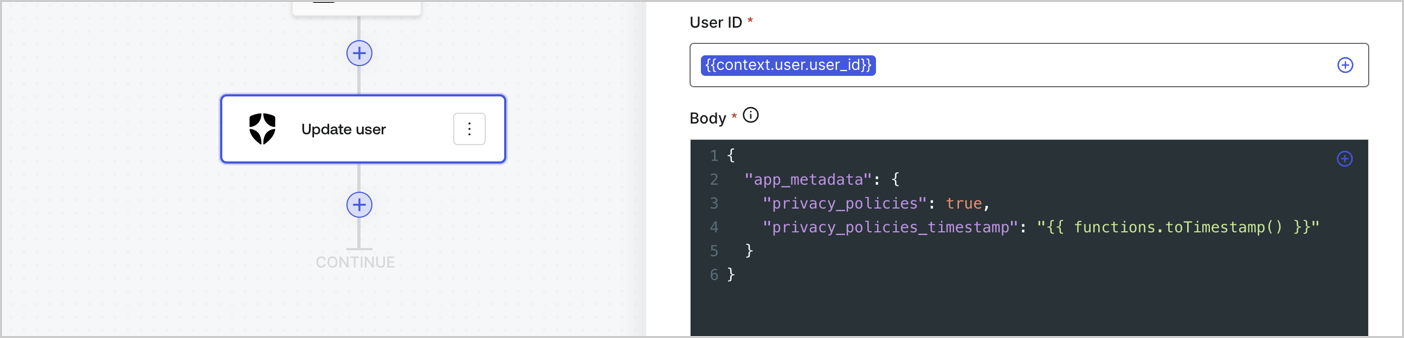
Add an Auth0 Update user action to the flow by following these steps:

1. Select the **Flow** **Update app\_metadata** > **Edit flow** to open the Flow editor in a new tab.
2. Below the StartAction, select the **+** icon to add an **Update user** action. Complete the fields below, then select **Save** to continue.

   * **Connection**: Select from the dropdown the Vault connection to your M2M application.

   * **User ID**: Enter `{{context.user.user_id}}`.

   * **Body**: Copy and paste the following code to update the app\_metadata with the privacy\_policies and privacy\_policies\_timestamp properties.

     ```text lines theme={null}
     {
       "app_metadata": {
         "privacy_policies": true,
         "privacy_policies_timestamp": "{{ functions.toTimestamp() }}"
       }
     }
     ```

   * Select **Save**.
3. Select **Publish** to save.
<Frame>
  <img src="https://mintcdn.com/docs-staging-feat-eup-870/0A6H0_c-K-b-Ae_E/docs/images/cdy7uua7fh8z/CvMNIwWrOUwaFW4X3G28p/1fb70ae57a20749d9ffaaba8dc0b7e26/update-user-privacy.png?fit=max&auto=format&n=0A6H0_c-K-b-Ae_E&q=85&s=d8d3b91731022811754e016b051dc658" alt="Dashboard > Actions > Forms > User case privacy policy code" data-og-width="1404" width="1404" data-og-height="338" height="338" data-path="docs/images/cdy7uua7fh8z/CvMNIwWrOUwaFW4X3G28p/1fb70ae57a20749d9ffaaba8dc0b7e26/update-user-privacy.png" data-optimize="true" data-opv="3" srcset="https://mintcdn.com/docs-staging-feat-eup-870/0A6H0_c-K-b-Ae_E/docs/images/cdy7uua7fh8z/CvMNIwWrOUwaFW4X3G28p/1fb70ae57a20749d9ffaaba8dc0b7e26/update-user-privacy.png?w=280&fit=max&auto=format&n=0A6H0_c-K-b-Ae_E&q=85&s=2a67a0161f2bff7a951b64bf412a1f6d 280w, https://mintcdn.com/docs-staging-feat-eup-870/0A6H0_c-K-b-Ae_E/docs/images/cdy7uua7fh8z/CvMNIwWrOUwaFW4X3G28p/1fb70ae57a20749d9ffaaba8dc0b7e26/update-user-privacy.png?w=560&fit=max&auto=format&n=0A6H0_c-K-b-Ae_E&q=85&s=2663e1436f86017b8231bceea4bdfcd6 560w, https://mintcdn.com/docs-staging-feat-eup-870/0A6H0_c-K-b-Ae_E/docs/images/cdy7uua7fh8z/CvMNIwWrOUwaFW4X3G28p/1fb70ae57a20749d9ffaaba8dc0b7e26/update-user-privacy.png?w=840&fit=max&auto=format&n=0A6H0_c-K-b-Ae_E&q=85&s=62a65c4e666103599002a0ce2503cc41 840w, https://mintcdn.com/docs-staging-feat-eup-870/0A6H0_c-K-b-Ae_E/docs/images/cdy7uua7fh8z/CvMNIwWrOUwaFW4X3G28p/1fb70ae57a20749d9ffaaba8dc0b7e26/update-user-privacy.png?w=1100&fit=max&auto=format&n=0A6H0_c-K-b-Ae_E&q=85&s=9a7737a42ca4df24d8deb953b669923a 1100w, https://mintcdn.com/docs-staging-feat-eup-870/0A6H0_c-K-b-Ae_E/docs/images/cdy7uua7fh8z/CvMNIwWrOUwaFW4X3G28p/1fb70ae57a20749d9ffaaba8dc0b7e26/update-user-privacy.png?w=1650&fit=max&auto=format&n=0A6H0_c-K-b-Ae_E&q=85&s=9f5110f47482736b0b2b4ee46d0e7080 1650w, https://mintcdn.com/docs-staging-feat-eup-870/0A6H0_c-K-b-Ae_E/docs/images/cdy7uua7fh8z/CvMNIwWrOUwaFW4X3G28p/1fb70ae57a20749d9ffaaba8dc0b7e26/update-user-privacy.png?w=2500&fit=max&auto=format&n=0A6H0_c-K-b-Ae_E&q=85&s=b5ecfddcef605fee0fdfaefaebfb5bfa 2500w" />
</Frame>

<Callout icon="file-lines" color="#0EA5E9" iconType="regular">
  The flow **Update app\_metadata** adds a `privacy_policies true` value to the app`_metadata` object and also generates a timestamp with a [helper function.](/docs/customize/forms/variables)
</Callout>

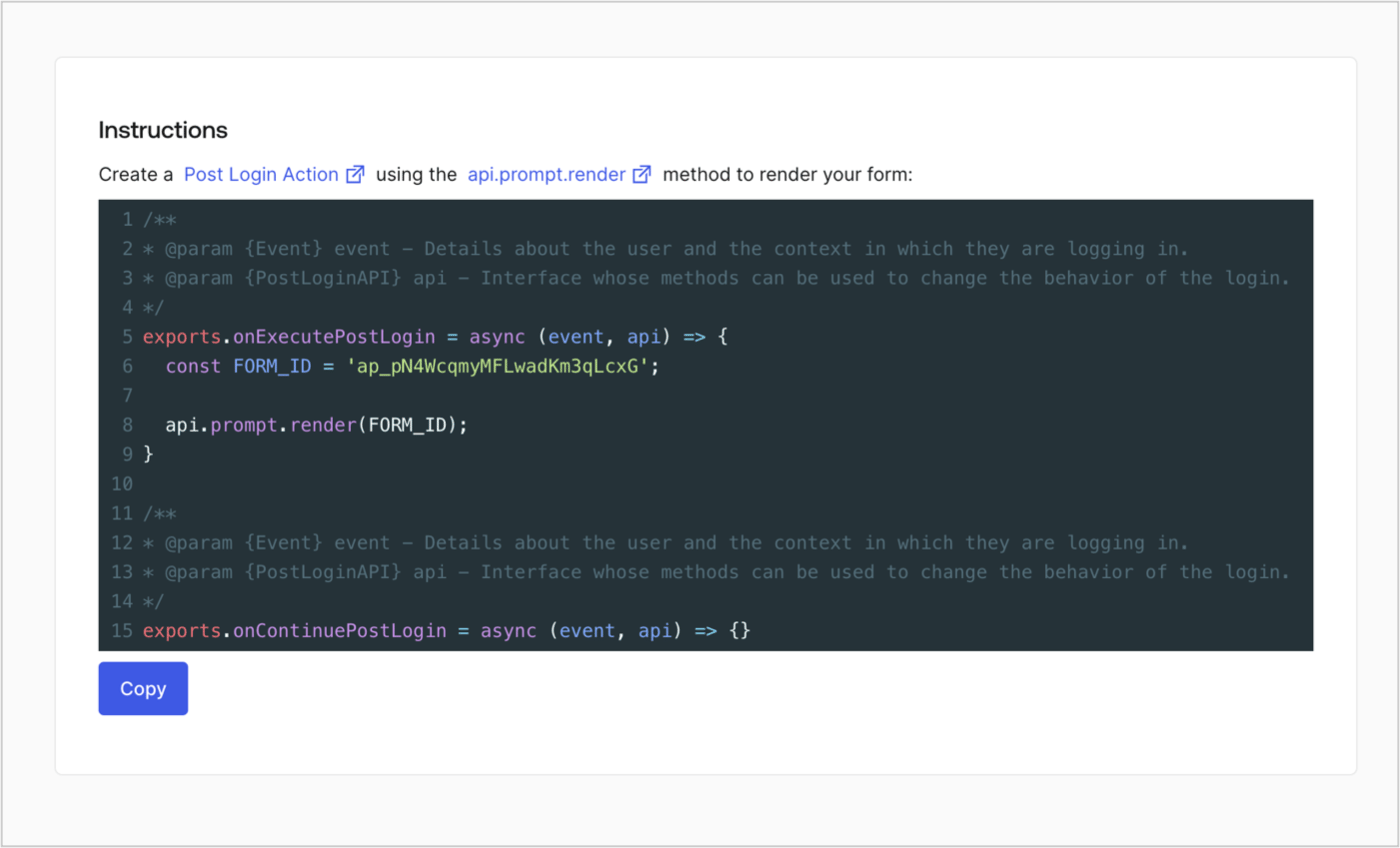
## Retrieve the form render code

Retrieve your form render code to visually render the form with a custom Post Login Action by following these steps:

* From the Form editor, select **`<> Render`**.
* Select **Copy**.
<Frame>
  <img src="https://mintcdn.com/docs-staging-feat-eup-870/dQhKkqZ0pBI-3dG1/docs/images/cdy7uua7fh8z/2EIUzc539sq9lwoTKbjoJv/496a864c0fc44a782c9cadca119dbfb0/embed.png?fit=max&auto=format&n=dQhKkqZ0pBI-3dG1&q=85&s=536497371837613b584e077115556f86" alt="Dashboard > Actions > Forms > Form > Embed" data-og-width="1400" width="1400" data-og-height="848" height="848" data-path="docs/images/cdy7uua7fh8z/2EIUzc539sq9lwoTKbjoJv/496a864c0fc44a782c9cadca119dbfb0/embed.png" data-optimize="true" data-opv="3" srcset="https://mintcdn.com/docs-staging-feat-eup-870/dQhKkqZ0pBI-3dG1/docs/images/cdy7uua7fh8z/2EIUzc539sq9lwoTKbjoJv/496a864c0fc44a782c9cadca119dbfb0/embed.png?w=280&fit=max&auto=format&n=dQhKkqZ0pBI-3dG1&q=85&s=8386185b77da00b20fc898e9dbf9595a 280w, https://mintcdn.com/docs-staging-feat-eup-870/dQhKkqZ0pBI-3dG1/docs/images/cdy7uua7fh8z/2EIUzc539sq9lwoTKbjoJv/496a864c0fc44a782c9cadca119dbfb0/embed.png?w=560&fit=max&auto=format&n=dQhKkqZ0pBI-3dG1&q=85&s=960775c953150e23e3ce4cae97f89e95 560w, https://mintcdn.com/docs-staging-feat-eup-870/dQhKkqZ0pBI-3dG1/docs/images/cdy7uua7fh8z/2EIUzc539sq9lwoTKbjoJv/496a864c0fc44a782c9cadca119dbfb0/embed.png?w=840&fit=max&auto=format&n=dQhKkqZ0pBI-3dG1&q=85&s=b39ae862030c300f24c717c174630861 840w, https://mintcdn.com/docs-staging-feat-eup-870/dQhKkqZ0pBI-3dG1/docs/images/cdy7uua7fh8z/2EIUzc539sq9lwoTKbjoJv/496a864c0fc44a782c9cadca119dbfb0/embed.png?w=1100&fit=max&auto=format&n=dQhKkqZ0pBI-3dG1&q=85&s=30dd44b8bcca22c483a7aa4aceb8c322 1100w, https://mintcdn.com/docs-staging-feat-eup-870/dQhKkqZ0pBI-3dG1/docs/images/cdy7uua7fh8z/2EIUzc539sq9lwoTKbjoJv/496a864c0fc44a782c9cadca119dbfb0/embed.png?w=1650&fit=max&auto=format&n=dQhKkqZ0pBI-3dG1&q=85&s=4ec32ef8f76901063a209e2b7b7bc11e 1650w, https://mintcdn.com/docs-staging-feat-eup-870/dQhKkqZ0pBI-3dG1/docs/images/cdy7uua7fh8z/2EIUzc539sq9lwoTKbjoJv/496a864c0fc44a782c9cadca119dbfb0/embed.png?w=2500&fit=max&auto=format&n=dQhKkqZ0pBI-3dG1&q=85&s=07faf2ed7d5d3f8fcc9e90fa93cfbd2c 2500w" />
</Frame>

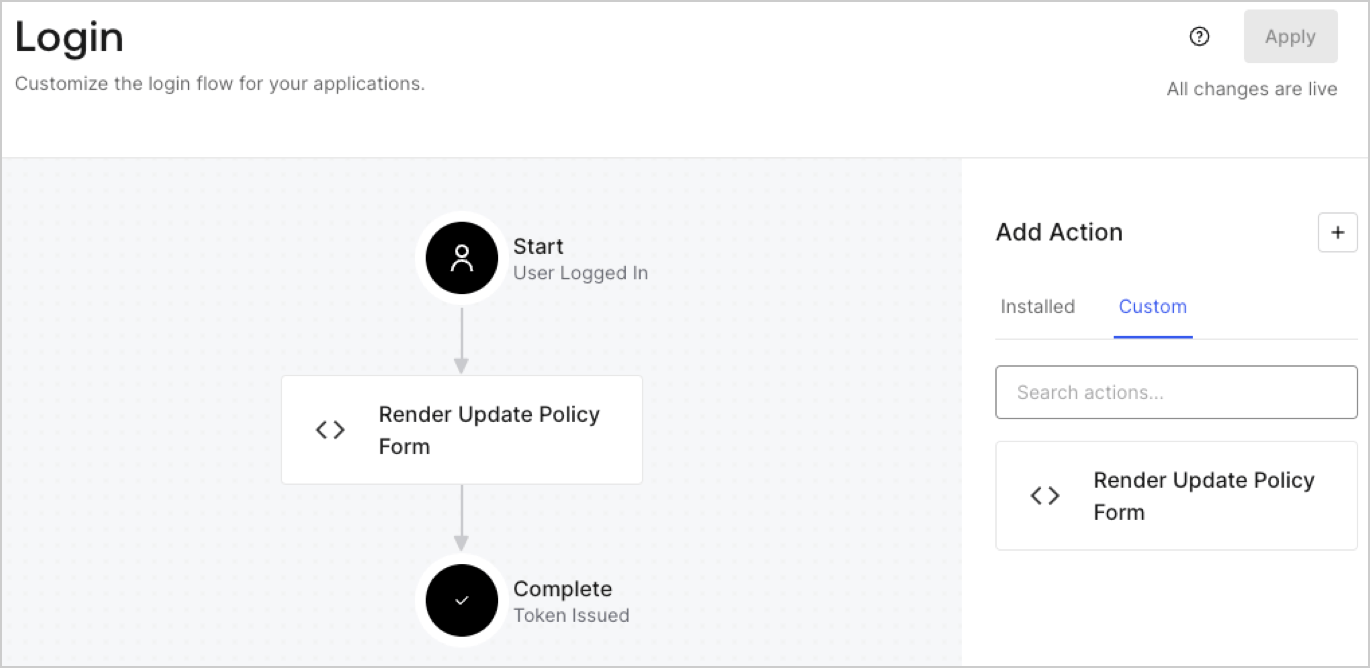
## Create a Post Login Action

Create a post-login Action to render your form by following these steps:

1. Navigate to **Auth0 Dashboard > Actions > Flows > Login.**
2. Select the **+** icon and Select **Build from scratch**:

   * **Name**: Enter `Render Update Policy Form`.
   * **Trigger**: Select `Login / Post Login`.
   * **Runtime**: Select the recommended version.
3. Select **Create**.

To configure the post-login Action:

1. Delete the existing code from the Code editor.
2. Paste the form render code into the Code editor.
3. Edit the code to define the conditional logic that will render the form.

   ```javascript lines theme={null}
   /**
   * @param {Event} event - Details about the user and the context in which they are logging in.
   * @param {PostLoginAPI} api - Interface whose methods can be used to change the behavior of the login.
   */
   exports.onExecutePostLogin = async (event, api) => {
     const FORM_ID = 'REPLACE_WITH_YOUR_FORM_ID';

     if (event.user.app_metadata.privacy_policies !== true) {
       api.prompt.render(FORM_ID);
     }
   }

   exports.onContinuePostLogin = async (event, api) => { }
   ```

   <Callout icon="file-lines" color="#0EA5E9" iconType="regular">
     The example code above will render the form when a user is missing the app metadata `privacy_policies` property.
   </Callout>
4. Select **Deploy.**
5. Drag and Drop the **Render Update Policy Form** Action to the **Login** flow.
   <Frame>
     <img src="https://mintcdn.com/docs-staging-feat-eup-870/Byux7_OiAv5Nm9ZO/docs/images/cdy7uua7fh8z/5TOwDgevZsBqd7yZynUYWU/41ca909dc3007aed4f40ff794a05efa5/postlogin.png?fit=max&auto=format&n=Byux7_OiAv5Nm9ZO&q=85&s=3bc871e085c453178ec00cac04aefc33" alt="Dashboard > Forms > Use Case > Render update policy form login action" data-og-width="1370" width="1370" data-og-height="668" height="668" data-path="docs/images/cdy7uua7fh8z/5TOwDgevZsBqd7yZynUYWU/41ca909dc3007aed4f40ff794a05efa5/postlogin.png" data-optimize="true" data-opv="3" srcset="https://mintcdn.com/docs-staging-feat-eup-870/Byux7_OiAv5Nm9ZO/docs/images/cdy7uua7fh8z/5TOwDgevZsBqd7yZynUYWU/41ca909dc3007aed4f40ff794a05efa5/postlogin.png?w=280&fit=max&auto=format&n=Byux7_OiAv5Nm9ZO&q=85&s=d68489ed2738781bdc40f20a084b72d6 280w, https://mintcdn.com/docs-staging-feat-eup-870/Byux7_OiAv5Nm9ZO/docs/images/cdy7uua7fh8z/5TOwDgevZsBqd7yZynUYWU/41ca909dc3007aed4f40ff794a05efa5/postlogin.png?w=560&fit=max&auto=format&n=Byux7_OiAv5Nm9ZO&q=85&s=d8e3e807e20fd5b95f0383d8d8bcdec0 560w, https://mintcdn.com/docs-staging-feat-eup-870/Byux7_OiAv5Nm9ZO/docs/images/cdy7uua7fh8z/5TOwDgevZsBqd7yZynUYWU/41ca909dc3007aed4f40ff794a05efa5/postlogin.png?w=840&fit=max&auto=format&n=Byux7_OiAv5Nm9ZO&q=85&s=c31f14d855bd35ed010bed792082741e 840w, https://mintcdn.com/docs-staging-feat-eup-870/Byux7_OiAv5Nm9ZO/docs/images/cdy7uua7fh8z/5TOwDgevZsBqd7yZynUYWU/41ca909dc3007aed4f40ff794a05efa5/postlogin.png?w=1100&fit=max&auto=format&n=Byux7_OiAv5Nm9ZO&q=85&s=b0537aab5c686d05c70a43ec56abe037 1100w, https://mintcdn.com/docs-staging-feat-eup-870/Byux7_OiAv5Nm9ZO/docs/images/cdy7uua7fh8z/5TOwDgevZsBqd7yZynUYWU/41ca909dc3007aed4f40ff794a05efa5/postlogin.png?w=1650&fit=max&auto=format&n=Byux7_OiAv5Nm9ZO&q=85&s=f938bbb62a1da370e5770625aeece958 1650w, https://mintcdn.com/docs-staging-feat-eup-870/Byux7_OiAv5Nm9ZO/docs/images/cdy7uua7fh8z/5TOwDgevZsBqd7yZynUYWU/41ca909dc3007aed4f40ff794a05efa5/postlogin.png?w=2500&fit=max&auto=format&n=Byux7_OiAv5Nm9ZO&q=85&s=ad492eb777a5fef3c983433818271da0 2500w" />
   </Frame>
6. Select **Apply.**

### Test implementation

Test the implementation by following these steps:

1. Log in with an existing user whose app`_metadata` attribute `privacy_policies` does not have a value.
2. The post-login Action in the Login flow will render the form and prompt for acceptance.
3. Select **Auth0 Dashboard > User Management > Users,** locate the user and verify that the `app_metadata` attribute `privacy_policies` contains a `true` value and a timestamp.
